Travelgenix Manifest
MANIFESTIssue 01 · October 2026
Cover
A small island ringed by water villas in the Maldives, at sunrise

Travelgenix · What's new for your agencyIssue 01 · October 2026

Manifest

Cover story

The holiday they left behind

Abandoned Baskets: one well-timed email in your name, with a way back to the same trip.

  • Booking confirmations in your own layout, in seven languages
  • ATOL certificates filled in for you
  • Where to Go the best places for every month
  • Travel advice in the Foreign Office's own words

DeparturesIssue 01

Departures

Everything in this issue, with the plans it comes with. Tap a line to go straight there.

2Manifest · Issue 01 · October 2026
ManifestWelcome

What's new for your agency

New ways to win back the customers who nearly booked, look after the ones who did, and help every visitor choose.

Every feature in this issue works from your Travelgenix dashboard, and each one has a section of its own laid out the same way: what it does, how it works, the emails it sends, how to set it up and the questions we hear most.

We start with the customer who left a holiday in their basket, follow them through booking, paying and getting ready to fly, then come back to the widgets that help a visitor decide where to go.

The examples use a made-up agency, Sunshine Holidays, and made-up customers. The emails and screens are the real thing, drawn by the products themselves.

How to use it

  • Turn a page by dragging a corner, tapping its edge or pressing the arrow keys.
  • Tap any email to read it full size, then step through its styles and languages.
  • Contents at the top takes you straight to a section, and so does the board opposite.
  • Read this page sets the words in one easy column, handy on a phone.

The Travelgenix teamOctober 2026

3Welcome
An atoll in the Maldives from the air, its reef curling through deep blue water
Cover storyAbandoned Baskets

Still in the basket

A visitor chooses a holiday, puts it in the basket and then life gets in the way. Abandoned Baskets notices, waits and sends them one well-timed email in your name, with a way back to the same trip.

4Manifest · Issue 01 · October 2026
Cover storyAbandoned Baskets

It works with your Travelify website and there is nothing to install. Switch it on, choose when the email goes and how it looks, and we do the rest.

You get a copy of every email we send for you, an hourly summary in office hours and a page that lists every basket and what happened to it.

At a glanceAB · 01
PlansSpark, Boost, Ignite and Bespoke
Find itDashboard › Abandoned Baskets
LanguagesSeven
EmailsThe reminder, your copy and an hourly summary

An atoll in the Maldives, from the air

5Abandoned Baskets
Abandoned BasketsHow it works

How it works

From the basket to one email

  1. They leave a holiday in the basketTravelify tells us when a basket is created on your website, and again if it turns into a booking.
  2. We waitAn hour to begin with. You can choose anything from 30 minutes to a day.
  3. We look at the basket againIf it has not been booked, the customer gets one reminder in your name: their trip, the price and a button back to it.
    • No email goes if they booked in the meantime
    • or they have unsubscribed, or said no to marketing
    • or there is no email address: the basket still shows on your page, so you can call
    • or your widget is switched off
  4. A way back to the same tripThe button runs a fresh search on your website for the same trip: the same airports, dates, party and board, at today's prices.
  5. You see it allA copy of each reminder, an hourly summary in office hours and a page listing every basket.
6Manifest · Issue 01 · October 2026
The reminderAbandoned Baskets

The reminder

Make them want to go

A reminder is a marketing email, so it sells the trip as well as reminding them of it. Inspire, the style every new widget starts with, carries:

  • A photograph of where they were going
  • Their basket, with a flight and hotel shown as one holiday price
  • The weather for the month they travel, as averages, and it says so
  • A few lines about the destination and three things to do
  • Continue your booking, near the top and again at the end
  • An unsubscribe link, as every reminder has

Subject line

Your Lhaviyani Atoll holiday is still in your basket

Ours names the place they were going. You can write your own, with their name, the destination or the price in it.

Tap the email to read it full size

ExampleHannah Morgan's week in the Maldives, with the made-up agency Sunshine Holidays.

7Abandoned Baskets
Abandoned BasketsFour styles

The reminder

Four starter styles

Start from the one that suits you. Tap any of them to read it full size.

InspireThe one we start with
PostcardTheir hotel on its own card
Personal noteFrom your team, no pictures
SimpleThe basket and the button

Make it yours

Every style is built from blocks. Add, move or remove them: a heading, your own words, a button, an image or the weather. A block with nothing to show is left out.

Your name, logo and colours come from the widget, or from your account when left blank.

8Manifest · Issue 01 · October 2026
Seven languagesAbandoned Baskets

Languages and prices

In your customers' language

Choose English, French, German, Spanish, Italian, Romanian or Swedish for the reminder, your copy and your summary. Our words are translated; anything you write yourself is sent as you wrote it, and the destination guide stays in English.

English
Français
Deutsch
Español
Italiano
Română
Svenska

Prices, three ways

Always show pence
£1,200.00
Pence only when needed
£1,200 · £405.20
Whole pounds
£1,200 · £405

Always in the basket's own currency, so kronor show as kronor.

9Abandoned Baskets
Abandoned BasketsWhat you get

What you get

You see every one

Your copyStraight after theirs
Summary, 12:00Every office hour
Summary, 8amThe overnight ones

Your copy is the customer's email exactly as they saw it, with a line on top saying who it went to, when, and their phone number when we have it. Send copies to up to three addresses.

The summary lists the new baskets on the hour in your office hours, with one at 8am for the overnight ones. It only comes when there is something in it.

Everyone is on it, customers with no email address included, so you know who to ring.

10Manifest · Issue 01 · October 2026
Your basketsAbandoned Baskets

Your baskets

Every basket, in one place

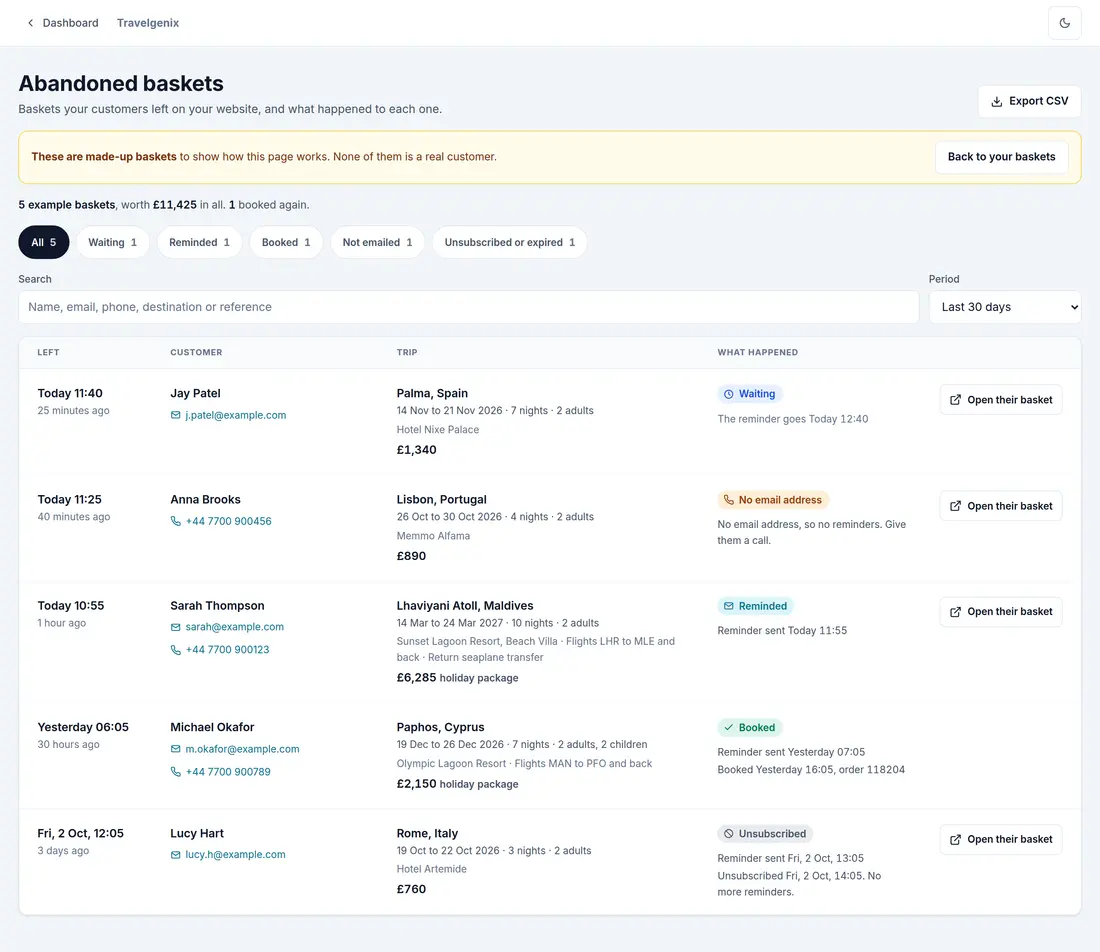
widgets.travelify.io/abandoned-baskets
The Abandoned Baskets page: each basket with the customer's details, the trip, what happened and what happens next
  • Their email and phone, ready to tap
  • The trip, the party and the price
  • Filter by what happened
  • Search by name, email or destination
  • The last 7, 30 or 90 days
  • Export it to open in Excel

ExampleMade-up baskets. Open the page from the editor, or from any summary.

11Abandoned Baskets
Abandoned BasketsSet it up

Set it up

In six steps

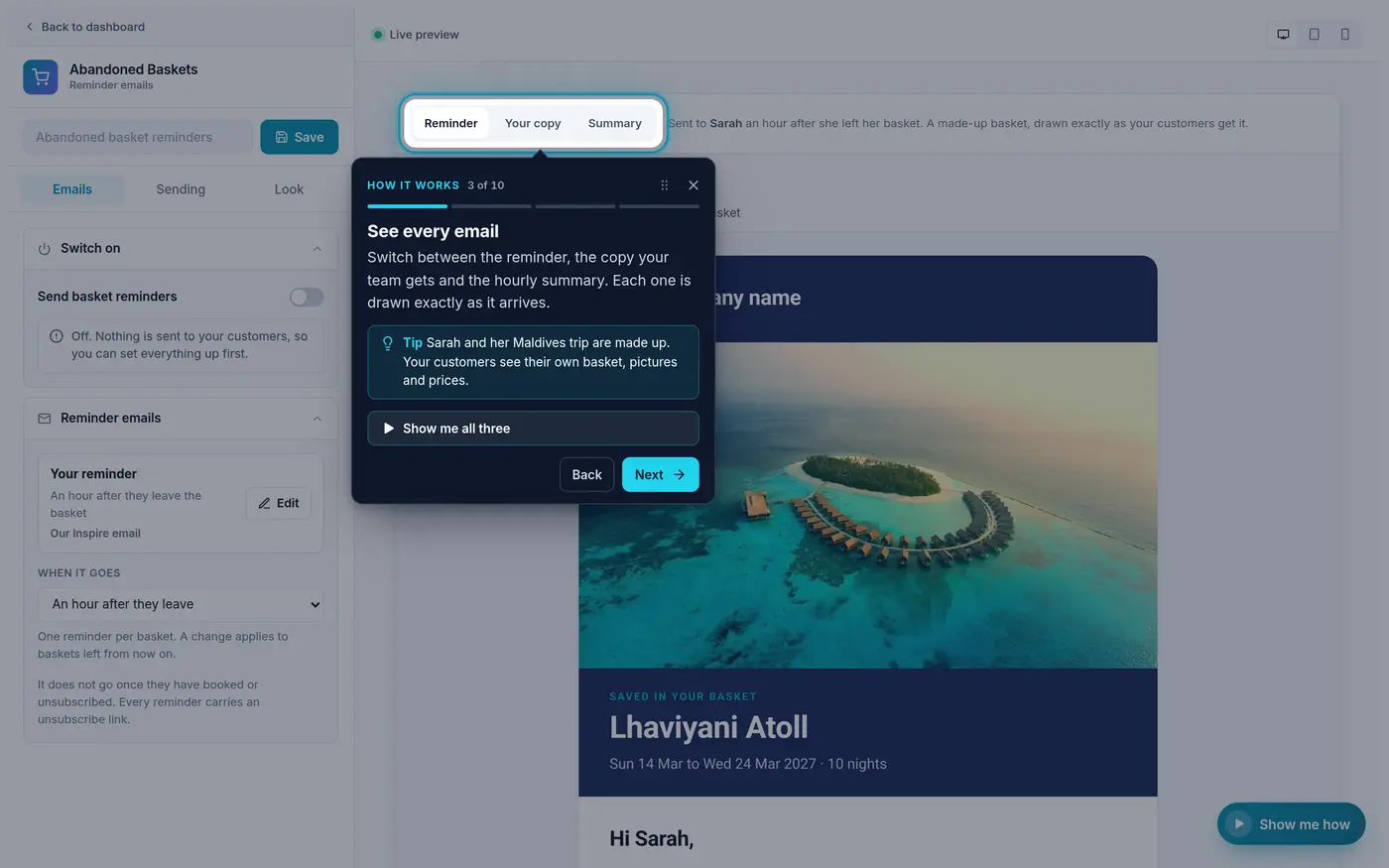
The Abandoned Baskets editor
The Abandoned Baskets editor with the Show me how tour on step 3 of 10, the editor dimmed and the live preview lit
  1. Open Abandoned Baskets from your dashboard. Show me how, bottom right, walks you through the rest.
  2. On Emails, choose When it goes: an hour after they leave, or anything from 30 minutes to a day.
  3. Press Edit on your reminder to pick a style, write your own subject or move the blocks.
  4. On Sending, choose who gets your copies and summaries, and set your office hours.
  5. Check Who the emails are from: your company name, Send emails from, support email and phone.
  6. Switch on Send basket reminders and press Save.
12Manifest · Issue 01 · October 2026
Good to knowAbandoned Baskets

Good to know

Questions we hear

What if they book in the meantime?
Nothing is sent. Travelify tells us the moment a basket becomes a booking.
Could they get a second email?
No. There is one reminder per basket, never a follow-up.
Can they unsubscribe?
Yes, in one click from every reminder. Your reminders to them stop straight away.
Is the price held for them?
No. The button finds the same trip at today's prices, and the email says prices and availability can change.
Will it come from our own email address?
Yes, once your domain is authenticated with us: three DNS records and a few minutes. Until then it comes from our address in your name, and replies always come to you.
Can every basket be emailed?
Almost. A few have no way back to the trip yet: a transfer, an airport extra or extras on their own, car hire picked up in town, or a trip whose date has passed. They still show on your page.
What do you keep?
Only what the email needs, deleted after 90 days. Never payment, passport or date of birth details.
13Abandoned Baskets
Palm Jumeirah in Dubai from the air at dusk, the city's towers behind it
After they bookBooking confirmations

The email that makes it real

14Manifest · Issue 01 · October 2026
After they bookBooking confirmations

Send each customer their confirmation the moment they book: your layout and colours, their booking pack attached, in their language and from your own address.

  1. A booking is made on your Travelify website.
  2. Usually within a minute, the customer gets their confirmation in your name.
  3. Their booking pack is attached as a PDF, with an ATOL certificate when the booking qualifies.
  4. Replies come to you, and they can send it again from their booking page whenever they like.
At a glanceBK · 02
PlansSpark, Boost, Ignite and Bespoke, with My Booking
Find itMy Booking › Content
LanguagesSeven
EmailsThe confirmation, with its booking pack

Palm Jumeirah, Dubai, at dusk

15Booking confirmations
Booking confirmationsFour styles

The confirmation

Four starter styles

Pick one, then arrange it. Tap any of them to read it full size.

StandardEverything in one card
PostcardOpens on a picture
MagazineThe destination too
ItineraryIn the order it happens
16Manifest · Issue 01 · October 2026
What it carriesBooking confirmations

Attached to it

The email says what was booked. The pack says the rest.

Booking pack, page 1
Page 2
Page 3
ATOL certificate
ProductIn the emailIn the pack too
HotelName, dates, rooms and boardAddress, check-in and check-out times
FlightsEach flight, its number and times, baggage and seatsThe same
TransfersOut and back, with date, time and routeThe vehicle and journey time
Car hireThe car, pick-up and drop-offIts class and what is included
TicketsWhat, when and whereDuration and meeting point
Airport extrasWhat it is, where and whenWhat is included, opening times, dress code

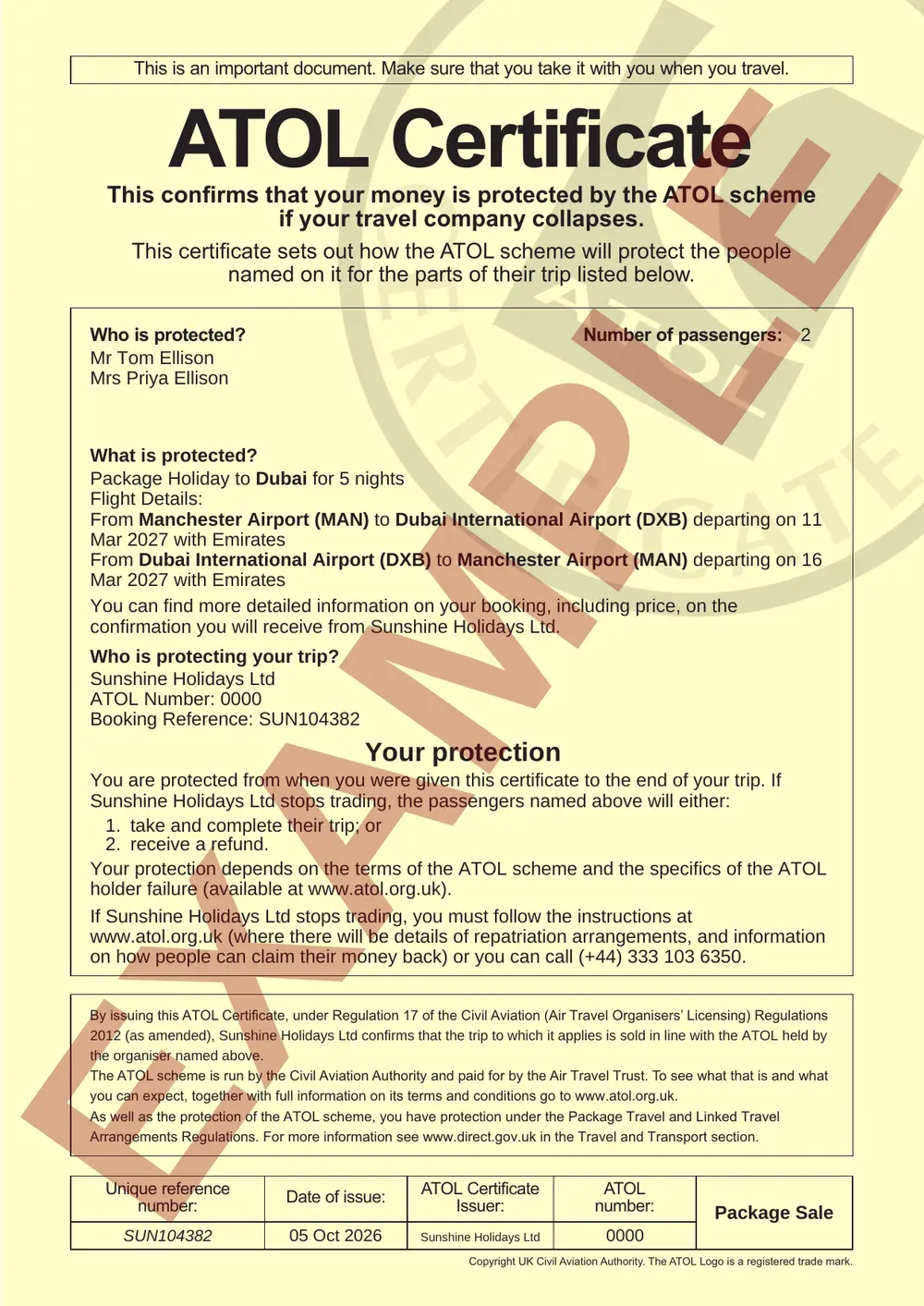
ExampleTom and Priya Ellison's five nights in Dubai with the made-up agency Sunshine Holidays. The EXAMPLE stamp on the certificate is ours.

17Booking confirmations
Booking confirmationsLanguages and prices

Languages and prices

In their language

Choose a language for the booking page, the pack and the emails, or Automatic, which shows each customer their booking page in their own language. The emails we send for you then go in the language you pick for them.

English
Français
Deutsch
Español
Italiano
Română
Svenska

Never translated: the booking details from Travelify, your own words and the ATOL certificate.

Prices, three ways

Always show pence
£1,200.00
Pence only when needed
£1,200 · £405.20
Whole pounds
£1,200 · £405

On the payment form and in a balance reminder, an amount being paid always shows to the penny.

18Manifest · Issue 01 · October 2026
Set it upBooking confirmations

Set it up

Switch it on in five steps

Before you switch it on

Make sure Travelify's own confirmation is turned off for you, or your customers will get two. Ask us if you are not sure.

  1. Open My Booking from your dashboard and go to Content, Support contact.
  2. Fill in Send emails from, your support email and phone.
  3. Under Customer emails, press Edit email on Booking confirmation to choose a style and arrange it. The preview shows exactly what your customer gets.
  4. On Settings, choose your Language and prices.
  5. Set Booking confirmation emails to On, and press Save.
Do we get a copy?
Not of the confirmation. Your customers can send it again from their booking page, to themselves and up to three others.
Will it come from our own address?
Yes, once your domain is authenticated with us: three DNS records and a few minutes. Until then it comes from our address in your name, and replies always come to you.
What about changes made in Travelify?
The confirmation is for new bookings. Changes and cancellations made in Travelify itself don't send it.
19Booking confirmations
After they bookATOL certificates
An example ATOL certificate on the CAA's yellow Package form, stamped EXAMPLE across the middle

ExampleA made-up booking with made-up ATOL details, on the CAA's own form. The EXAMPLE stamp is ours: a real certificate has none.

20Manifest · Issue 01 · October 2026
After they bookATOL certificates

ATOL certificates

Filled in for you

A booking that qualifies gets its ATOL Certificate on the CAA's own form, on the booking page and attached to the confirmation.

  1. Your ATOL details come from Travelify with each booking: number, holder, company and type. You enter nothing about your ATOL with us.
  2. A booking qualifies when it has a flight and at least one product you tick, accommodation to begin with. Flight-only bookings never get one.
  3. The customer finds it under an ATOL Certificate button on their booking page. Always one A4 page, in English, as the CAA publishes it.

Set it up

In My Booking, under Settings, ATOL certificates, tick the products that qualify with a flight. Package Sale and Single Contract show a sample.

Why did a booking get no certificate?
Usually its ATOL details are missing in Travelify, it is flight-only, or none of your ticked products is on it. Its confirmation email still goes.
At a glanceBK · 03
PlansAll four, with My Booking
Find itMy Booking › Settings
Sent withThe confirmation email, and on the booking page
21ATOL certificates
After they bookPassport details

Passport details

Passports, before they fly

Customers add or change the passport details for everyone on their flight from their booking page, and we send them straight to the booking in Travelify.

  1. A Passport details block appears inside each flight that Travelify lets them update.
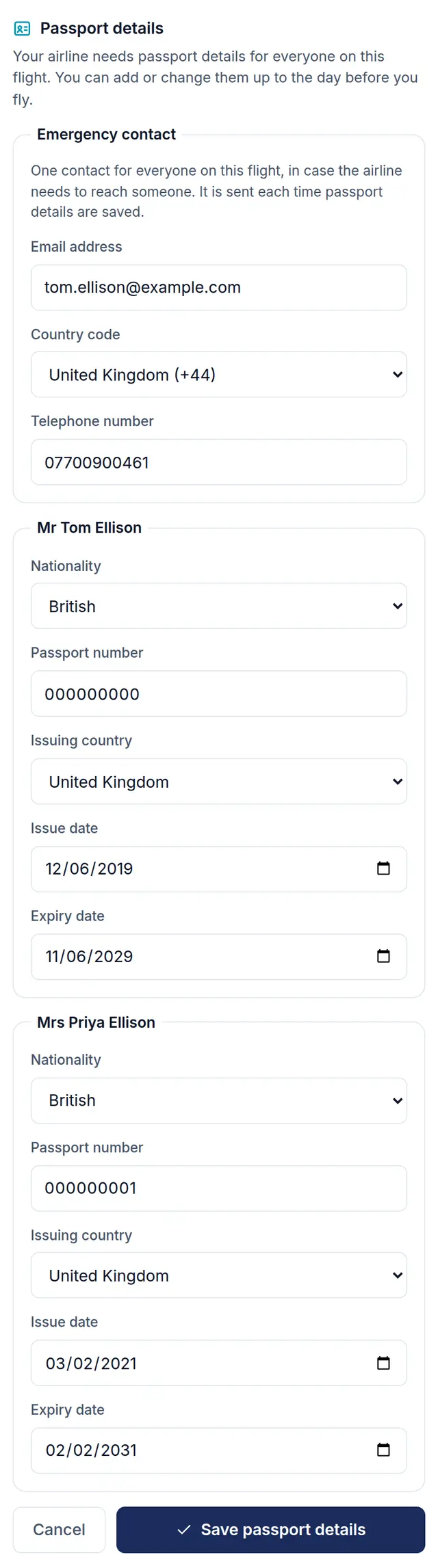
  2. One emergency contact first, then each traveller except infants: nationality, passport number, issuing country, issue and expiry dates.
  3. We check every field, and the passport must still be valid when the trip ends.
  4. Only what changed is sent, and the booking reloads showing the details saved.
When does it close?
It stays open until the day before the outbound flight. From the day they fly, the page shows only the last four characters, the country and the expiry date.
Is there anything to set up?
No. It comes with My Booking and appears by itself when a booking has it.
Do we get an email?
No. The details go straight onto the booking in Travelify.

Private by design

Passport numbers and contact details are never logged, never stored in the browser and never passed to your website's own page or its analytics.

22Manifest · Issue 01 · October 2026
After they bookPassport details
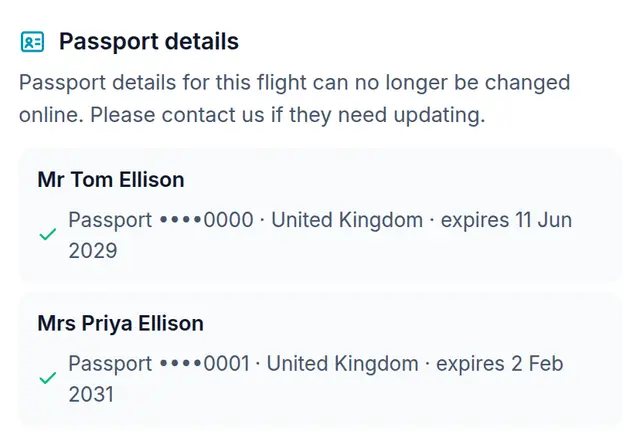
My Booking's passport form: the emergency contact first, then Mr Tom Ellison with nationality British, a passport number, issuing country and dates

After the cut-off

The read-only view after the cut-off: each traveller's passport shown as four dots and the last four characters, the country and the expiry date
On the day they fly, the form becomes this: the last four characters, the country and the expiry date.

ExampleThe form on a made-up booking for Tom and Priya. The passport numbers are made up too.

At a glanceBK · 04
PlansAll four, with My Booking
Find itOn each flight, by itself
EmailsNone: the details go straight onto the booking
23Passport details
After they bookBalance reminders

Balance reminders

A nudge when a payment is due

When a balance or an instalment falls due, the customer gets a clear email in your name, with a button to pay it on your booking page. Tap any of them to read it.

Balance dueWhen it falls due
An instalmentOn a payment plan
OverdueOnce the date passes
No booking pageGet in touch instead
  • Balance due: what is paid, what is due and when, with a Pay my balance button.
  • An instalment: the amount due now, and what is left after it.
  • Overdue: once the date has passed, it says so and shows the date it was due.
  • No booking page: it asks them to get in touch instead of showing a button.

ExampleThe same made-up booking for Tom and Priya Ellison.

24Manifest · Issue 01 · October 2026
After they bookBalance reminders

How it works

  1. Travelify tells us when a payment is due on a booking.
  2. We check the live booking first, so nobody who has already paid is asked for money.
  3. The customer gets one email in your name, and pays through your own Travelify checkout.

Set it up

  1. Ask us to switch balance reminders on for your account.
  2. In My Booking, under Content, Support contact, add your Booking page URL and set Balance reminder emails to On.
  3. Under Customer emails, press Edit email on either reminder to use your own subject and wording, or keep ours.
Do we get a copy?
No. Reminders go to the customer only.
Can we change when they go?
They follow the payment dates on the booking in Travelify, so there is nothing to set.
Whose wording is it?
Ours, unless you write your own. Your interim wording is also used when a payment is overdue, so word it to suit.
At a glanceBK · 05
PlansAll four, with My Booking
Find itMy Booking › Content
EmailsBalance due, an instalment and overdue
25Balance reminders
After they bookCancellations

Cancellations

When plans change

Customers can cancel part of their trip from their booking page, and get an email confirming it the moment it is done.

  1. A Need to cancel something? section lists every product on the booking, each with its own Cancel button.
  2. They see the cancellation policy and any charges, can give a reason, and confirm.
  3. The moment Travelify confirms it, they get an email in your name saying what was cancelled, with the references.
  4. If a supplier won't allow it online, the page asks them to contact you.

Set it up

Both are on to begin with. In My Booking, under Settings, Display, you will find Online cancellation and the Cancellation confirmation email. Press Edit email to write your own message.

Which reference does it show?
Your booking reference, always the order's own. A supplier's number only appears labelled as the supplier's.
Do cancellations made in Travelify send it?
No, only the ones customers make from their booking page.
26Manifest · Issue 01 · October 2026
After they bookCancellations

The email

Cancellation confirmed

Tom and Priya's hotel, cancelled. Tap to read it full size

  • What was cancelled
  • Your booking reference
  • The supplier's reference, labelled as theirs
  • The cancellation reference
  • Your own message, if you write one
  • How to reach you
At a glanceBK · 06
PlansAll four, with My Booking
Find itMy Booking › Settings
EmailsCancellation confirmed, to the customer
27Cancellations
After they bookBefore you go
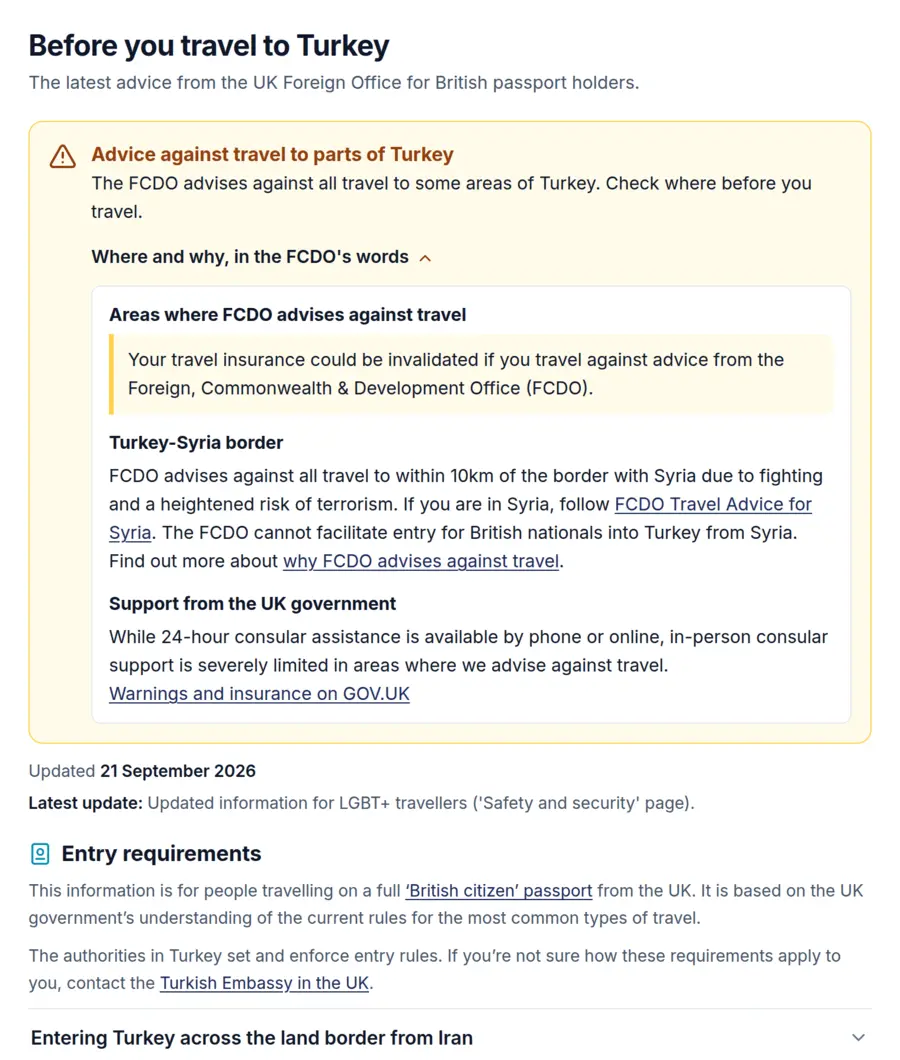
The Travel Advice widget: the advice level, the date it was updated and the entry requirements in the FCDO's own words

ExampleTurkey, as GOV.UK published it on 5 October 2026.

226

countries the Foreign Office covers

3

countries at most on a booking page

14 days

the oldest copy shown if GOV.UK is down

28Manifest · Issue 01 · October 2026
After they bookBefore you go

Travel advice

In the FCDO's own words

The Foreign Office's latest advice and entry requirements for British passport holders, straight from GOV.UK.

On the booking page

Switch on Travel advice before they go in My Booking, under Settings, Display. Each customer sees the advice for the countries they are visiting, up to three, until their trip is over. Trips within the UK show nothing. Off to begin with, and on every plan.

As a widget

Add Travel Advice to a destination or advice page, for one country or a list to choose from. From Boost.

Is it your wording?
No, it is the FCDO's own, kept up to date for you. The only line in our words is the advice level, read from GOV.UK's own status.
What always shows?
The date it was updated, a link to the full advice on GOV.UK and the credit. Using the FCDO's advice depends on them.
At a glanceBK · 07
On the booking pageAll four plans
As a widgetBoost, Ignite, Bespoke
29Before you go
Help them chooseWhere to Go

Where to go when

Visitors pick a month and see where is at its best: how warm, how wet, how long the flight is from their airport and what's on.

  1. They choose a month, then narrow it by weather, type of holiday, flight time and their own airport.
  2. Each place shows its photo, the average high and rainfall, the flight time and what's on that month.
  3. The button takes them to your holidays for that place and month, or opens an enquiry form.

How the weather words are chosen

ColdCoolMildWarmHot
5°C152228
DrySome rainWetVery wet
30 mm80150

The words come from each place's monthly averages, so they never promise sun every day.

30Manifest · Issue 01 · October 2026
Help them chooseWhere to Go
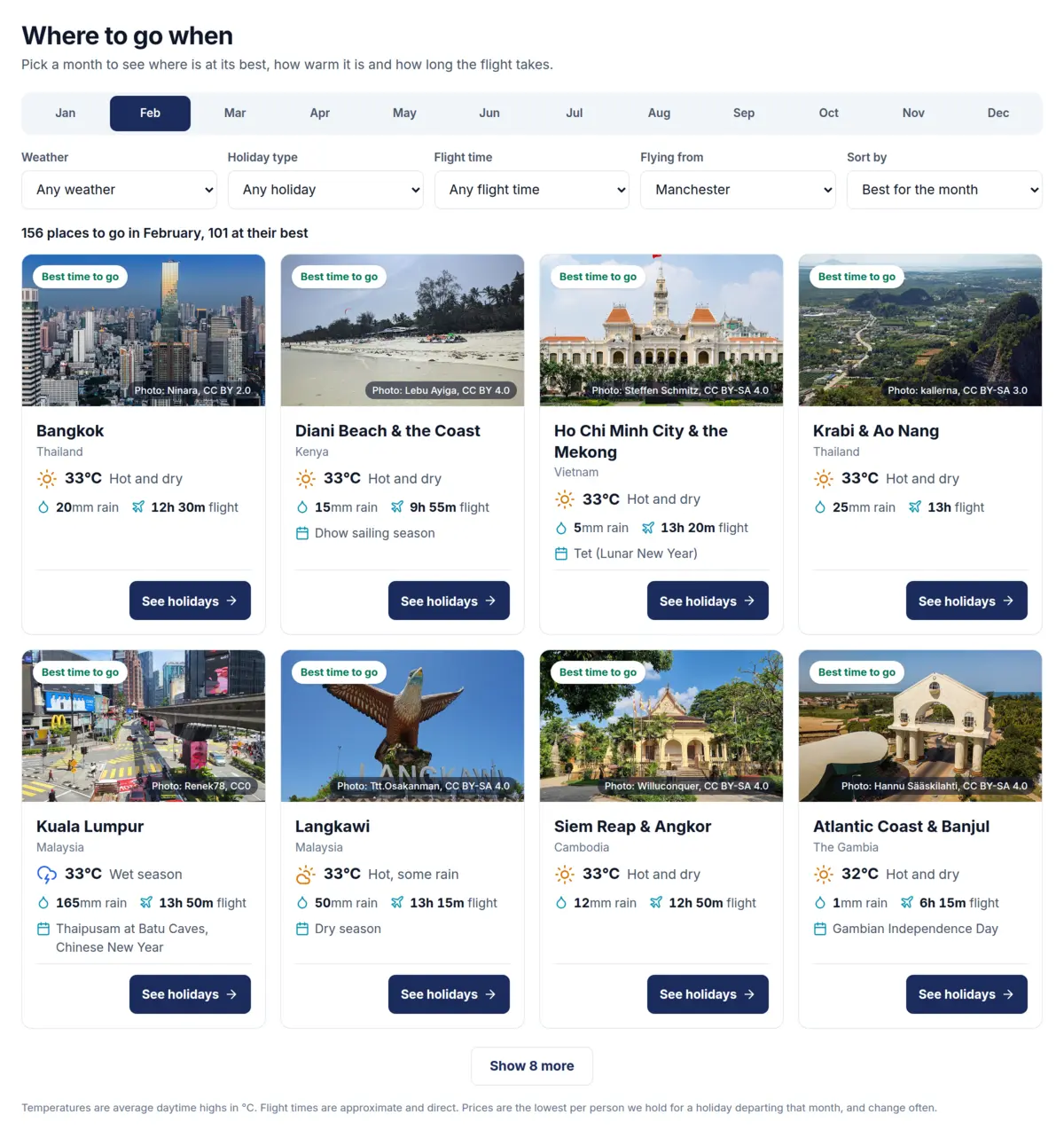
Where to Go on February from Manchester: eight destination cards, each with its photograph and credit, temperature, rain, flight time and what's on

Real placesFebruary from Manchester, as the widget shows it. Every photograph is a checked photo of the place, and carries its photographer's credit.

31Where to Go
Where to GoEnquiries

Enquiries

Ask about a place, in their month

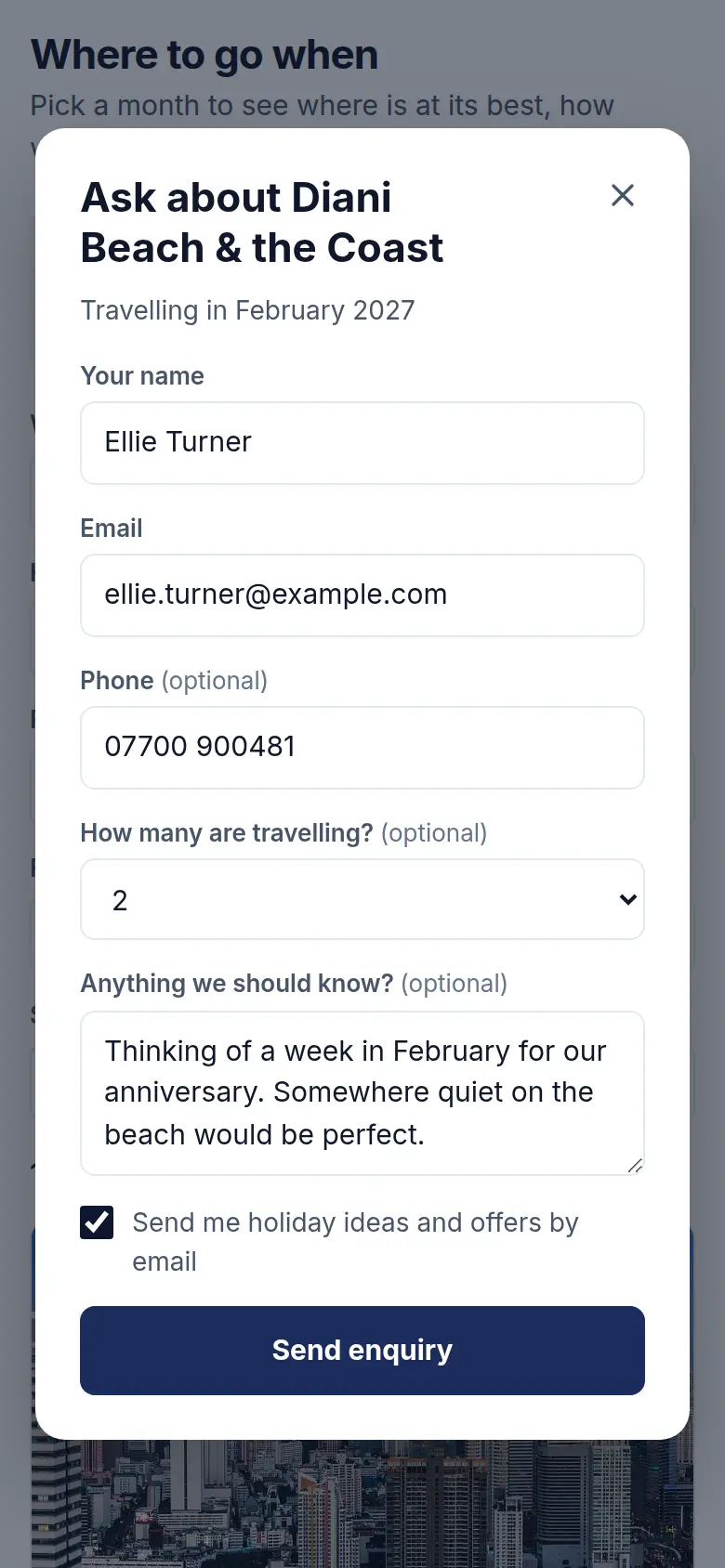
The enquiry form on a phone: Ask about Diani Beach and the Coast, travelling in February 2027, with name, email, phone, party size, a message and a marketing tick box filled in

Set the button to open an enquiry form, and visitors can ask about a place in the month they chose. You get an email with their details, the place, the month and their message. Reply and it goes straight to them.

Your emailTo the address you choose

Every enquiry also lands in your enquiry inbox, and in Luna Work if your account uses it.

ExampleEllie Turner asks about Diani Beach in February.

32Manifest · Issue 01 · October 2026
Set it upWhere to Go

Set it up

In five steps

  1. Open Where to Go from your dashboard.
  2. Under Content, choose Which destinations: Places, Countries or Your own list.
  3. Choose What the button does: link to your website, with the place and month in the link, or open an enquiry form.
  4. For enquiries, save once, then add your address under Tell your team.
  5. Under Settings, choose the month it opens on, the airport, and the filters visitors can use.
Where does the weather come from?
Each place's monthly averages for daytime highs and rainfall. The cards say so.
Do the prices search live?
Never. Cards can show a guide "from" price for the month, from offers we already hold, and you can switch prices off.
Whose photos are they?
Each is a checked photo of the place, with its photographer's credit on the card.
Does it need updating?
No. It opens on next month and moves on by itself.
At a glanceHC · 08
PlansBoost, Ignite and Bespoke
Find itDashboard › Where to Go
EmailsYour enquiry email, when the button opens a form
33Where to Go
Help them chooseDeal Calendar
The deal page
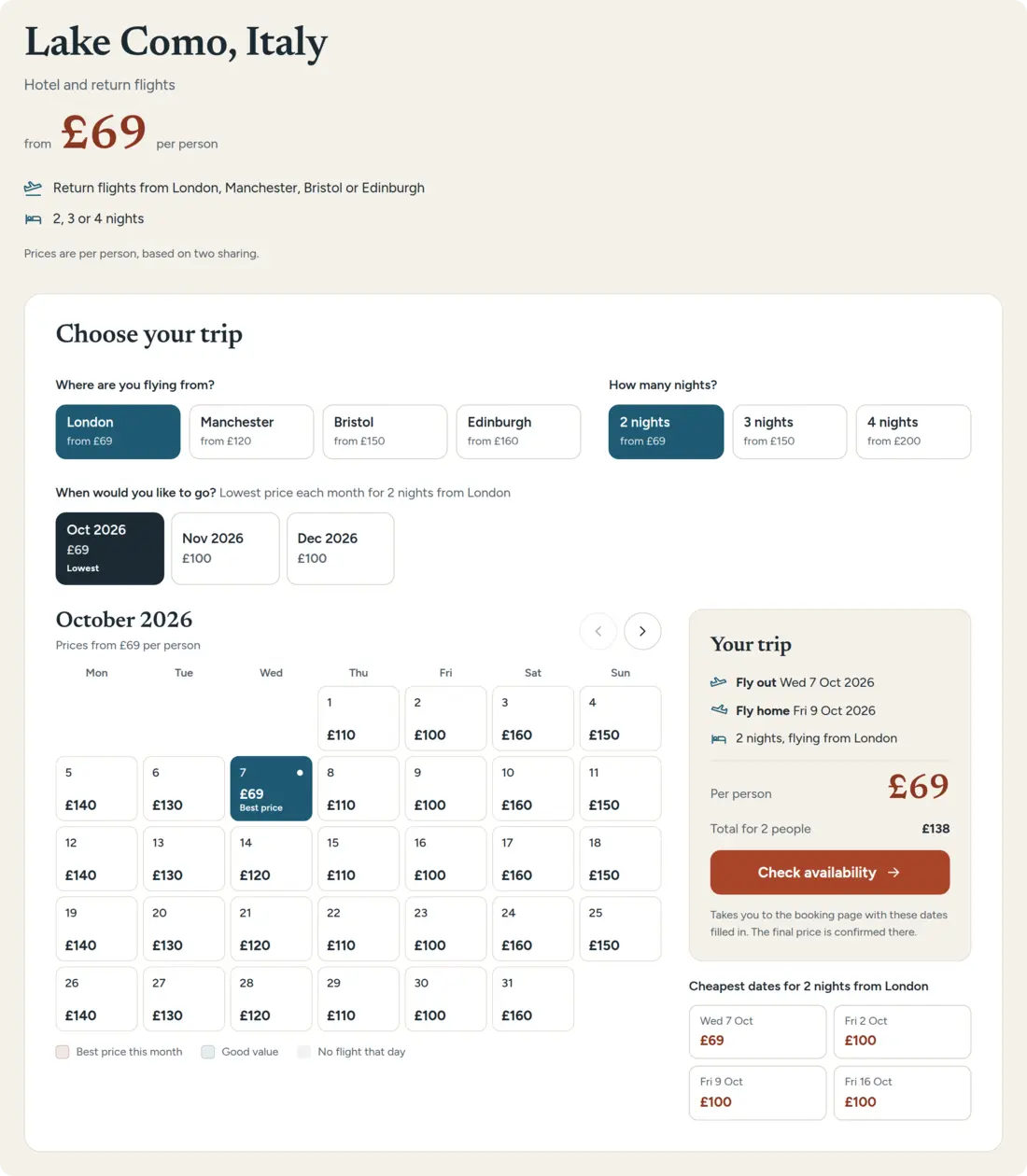
The Deal Calendar deal page: from £69 per person, airport and nights buttons, a month strip and a calendar with a price on every day
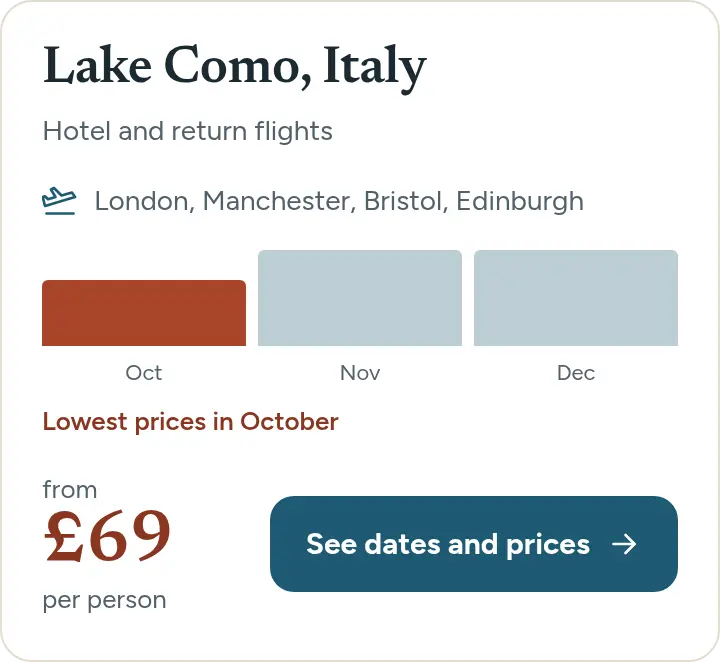
The offer card layout with a small bar chart of each month's lowest price
Offer card
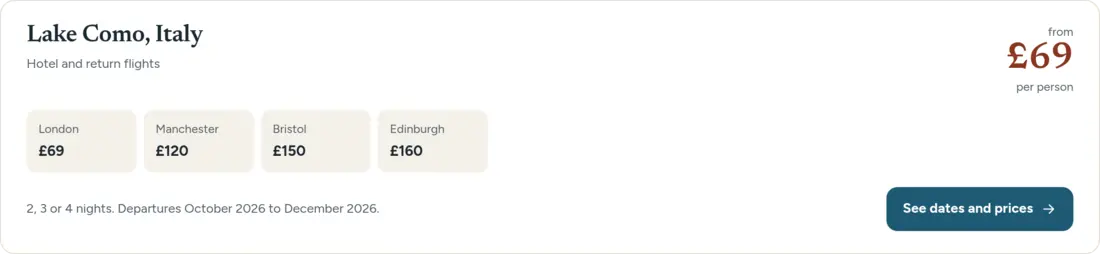
The banner layout with the lowest price from each airport
Banner

Example pricesDrawn by the widget from a made-up price file, in its three layouts.

34Manifest · Issue 01 · October 2026
Help them chooseDeal Calendar

Deal Calendar

A price for every day

Sell one holiday with every departure date and price on show, read from your own price file. Show it as a deal page, an offer card or a banner.

  1. Upload your price file: a row for each date, a column for each airport and length of stay.
  2. Visitors choose their airport, nights and month, then a date on the calendar, each with its price.
  3. Their trip shows the dates and the total, and the button takes them to your booking page with their choice filled in, or opens an enquiry.
Where do the prices come from?
Only your file. No supplier is ever searched, and a new file replaces the prices in full.
Does it ever say "only 2 left"?
Never. We don't invent scarcity.
Can visitors see example prices?
No. Example prices only ever show in the editor.
At a glanceHC · 09
PlansBoost, Ignite and Bespoke
Find itDashboard › Deal Calendar
EmailsYour enquiry email, and the visitor's copy
35Deal Calendar
Deal CalendarEnquiries

Enquiries

The exact trip they chose

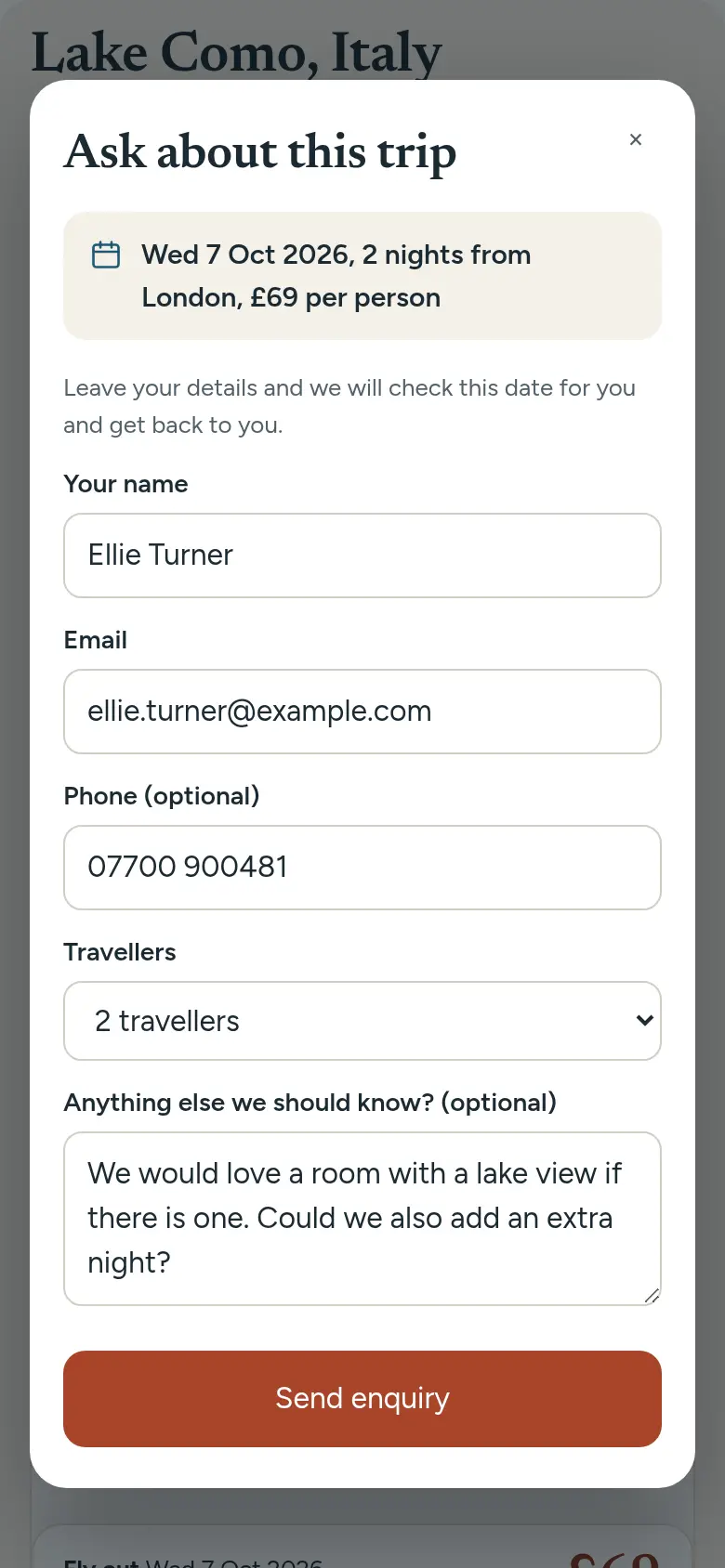
When the button opens an enquiry, visitors ask about the exact date, airport and nights they picked. You get their details, and they get a copy of what they sent, in your name. Every enquiry also lands in your enquiry inbox, and in Luna Work if your account uses it.

The enquiry form on a phone: Ask about this trip, Wednesday 7 October 2026, 2 nights from London at £69 per person, with name, email, phone, travellers and a message filled in
Your emailTo your Send enquiries to address. Reply and it goes straight to them.
Their copyTo the visitor, in your name

ExampleEllie Turner asks about two nights at Lake Como on 7 October, from London. Tap an email to read it.

36Manifest · Issue 01 · October 2026
Set it upDeal Calendar
The Deal Calendar editor
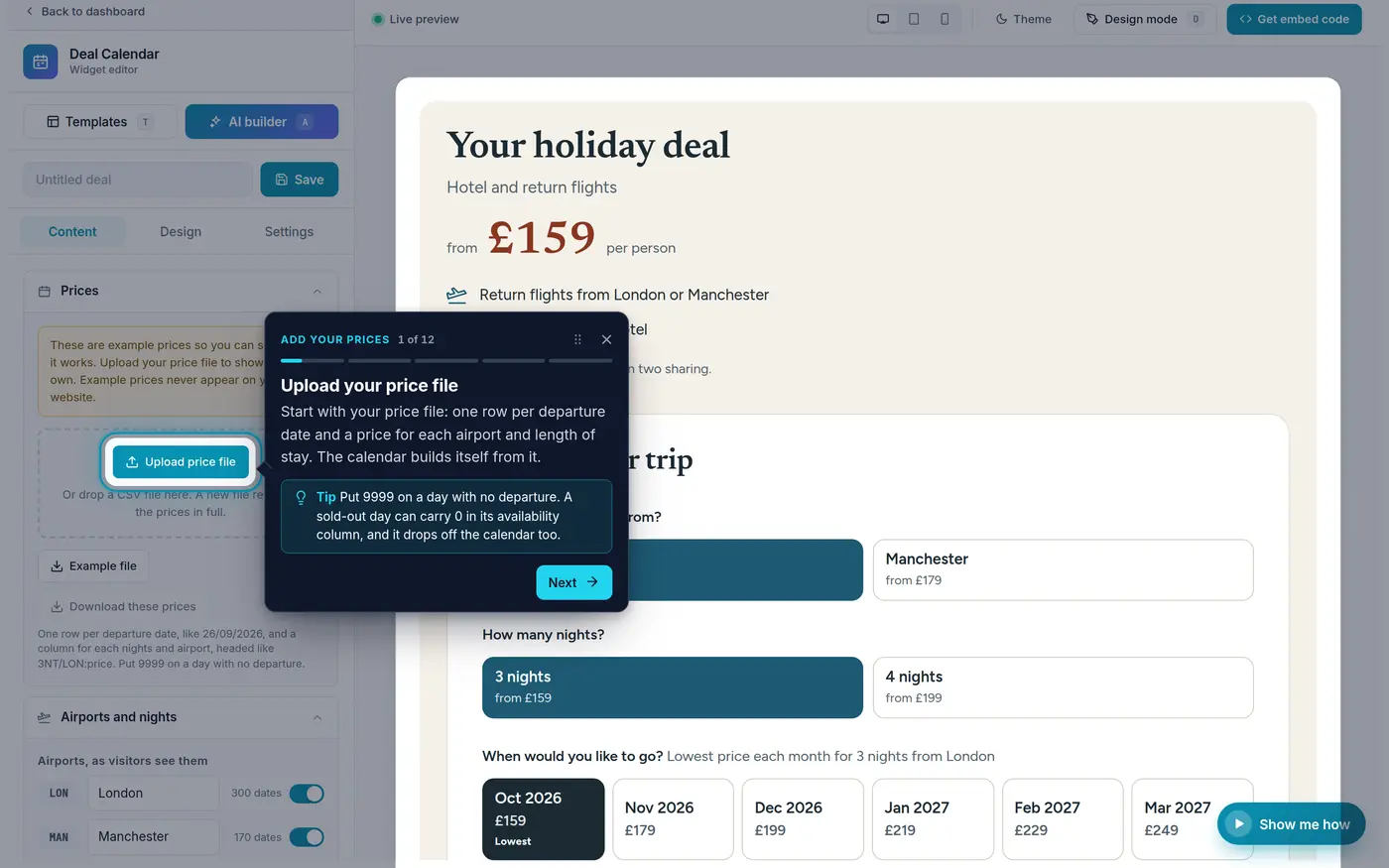
The Deal Calendar editor with Show me how on step 1 of 12, Upload your price file, and a tip about 9999 for a day with no departure

Set it up

  1. Open Deal Calendar and, under Content, press Upload price file. Prices update a few minutes after you save.
  2. Write the deal: its title, a line under it, what's included and up to six photos.
  3. Choose What the button does, then add your Booking link or the address to Send enquiries to.
  4. Under Design, choose Deal page, Offer card or Banner, and a colour preset.

Your price file

  • One row per date, day first: 07/10/2026 is 7 October.
  • A price column for each length of stay and airport, headed like 2NT/LON:price.
  • 9999, a blank or 0 means no departure. The editor has an example file.
37Deal Calendar
Help them chooseTravel Results AI
A results page, with the assistant open
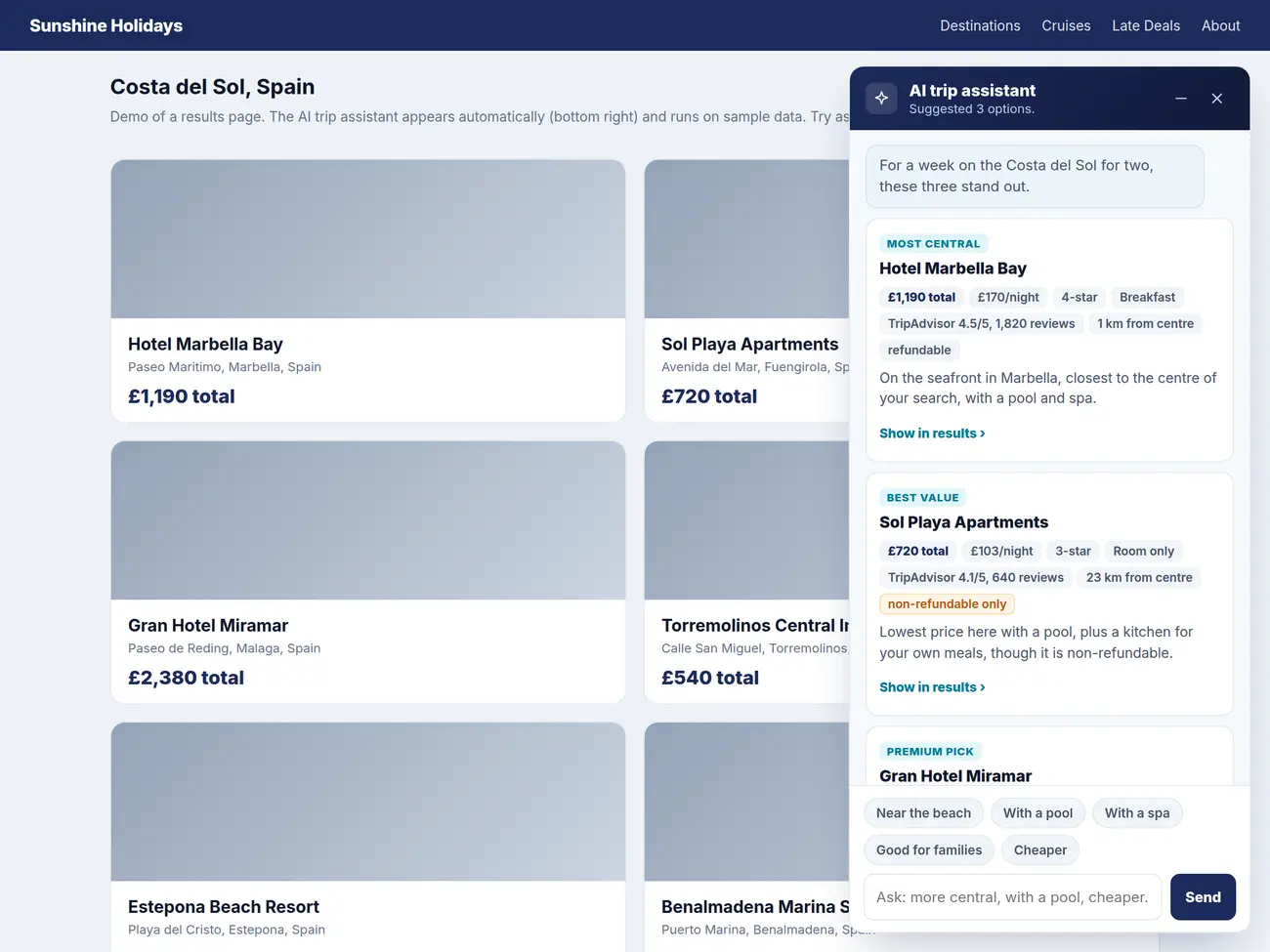
A demo results page for the Costa del Sol with the AI trip assistant open on the right
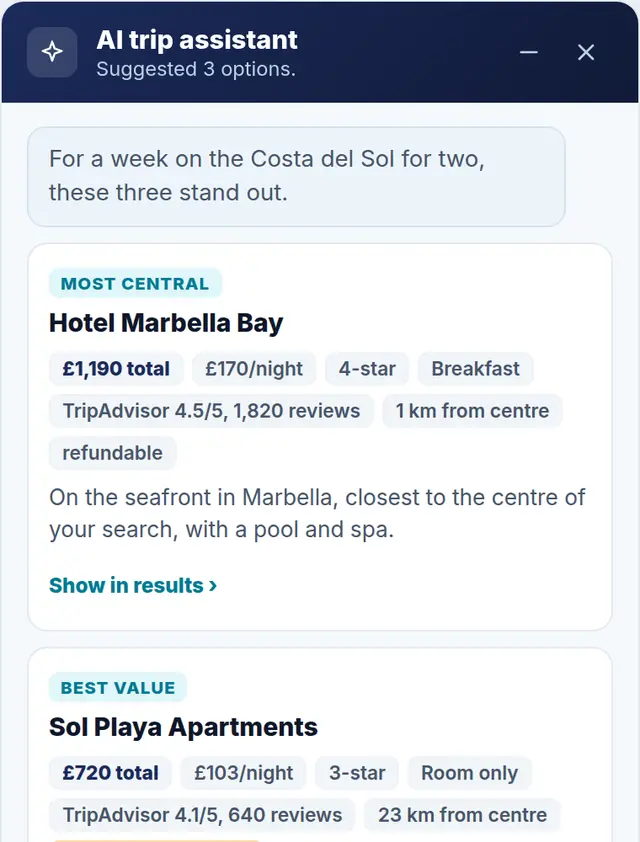
The assistant close up: its reply, then Hotel Marbella Bay as most central and Sol Playa Apartments as best value, each with fact chips and a one-line reason
  1. 1Picks with a reason, each with a label such as Best value or Most central, and the facts as chips.
  2. 2Ask again with a tap or in their own words, then show only the picks in the results.

ExampleThe assistant on a demo results page. The picks' wording was written for this picture.

38Manifest · Issue 01 · October 2026
Help them chooseTravel Results AI

Travel Results AI

A second opinion

An AI trip assistant on your Travelify results page.

  1. It reads the visitor's results and picks up to six, each with a label and a one-line reason.
  2. Visitors refine with a tap, such as Near the beach or Cheaper, or in their own words.
  3. Show these in results filters your page to the picks.

Set it up

Press Get embed code and paste the one script tag into the header of your results page.

Could it suggest a hotel that isn't there?
No. It only picks from the visitor's own results, and its reasons use only their details.
What happens to what visitors type?
It is never sent to your analytics.
Which languages?
English, French, German, Spanish, Italian and Romanian. Leave the wording blank and it follows the visitor's language.
At a glanceHC · 10
PlansIgnite and Bespoke
Find itDashboard › Travel Results AI
39Travel Results AI
A floodlit football stadium at night
Also newTickets and leads

Event tickets

Sell only your own ticket suppliers

Each of the seven event ticket widgets can show only the suppliers on your Travelify account, so every event, club and Book button is one you can sell. One page can sell one supplier and another page both.

Tick them in each widget under Settings, Booking, Ticket suppliers, or under Content in Event Menu. Every supplier is ticked to begin with, so nothing changes until you choose. Ignite and Bespoke.

Luna Work

Your leads, straight into Luna Work

If your account uses Luna Work, every enquiry and lead your widgets capture goes straight in, alongside your own emails, with nothing to set up. Only the consent a visitor actually gave goes with it.

If Luna Work is ever briefly unavailable, we keep the lead and send it again, and it is always in your enquiry inbox too.

40Manifest · Issue 01 · October 2026
Also newShow me how
The Deal Calendar editor
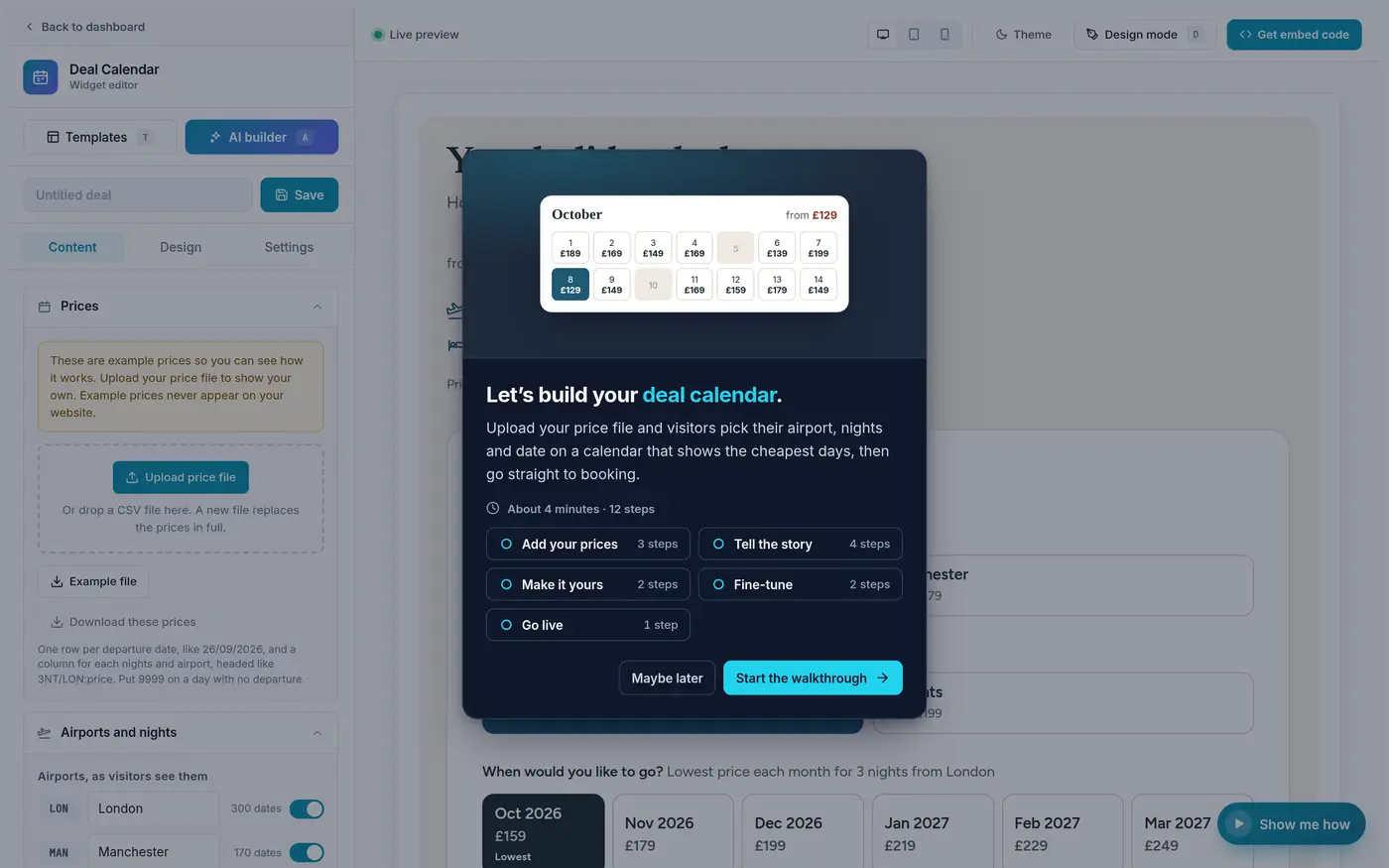
The Deal Calendar editor with its Show me how tour open: Let's build your deal calendar, about 4 minutes and 12 steps, in five chapters

Show me how

A guided tour, in the editor

Press Show me how, bottom right in the editor, and it points at the real controls one at a time while you set the widget up.

  • Chapters with a progress bar, and a tip on every step
  • On a new widget, Show me does a step for you
  • Close it part way and it offers to carry on
  • It ends with Save, the embed code and where to paste it

In the Abandoned Baskets, My Booking, Where to Go, Deal Calendar, Travel Advice, Enquiry Form and Special Offers editors, and more.

41Also new
At a glanceQuick guide

Quick guide

Everything at a glance

FeaturePlansFind itEmails
Abandoned BasketsAll plansDashboard › Abandoned BasketsReminder, your copy, hourly summary
Booking confirmationsAll plansMy Booking › ContentConfirmation with its booking pack
ATOL certificatesAll plansMy Booking › SettingsAttached to the confirmation
Passport detailsAll plansOn each flight, by itselfNone
Balance remindersAll plansAsk us, then My Booking › ContentBalance due, instalment, overdue
CancellationsAll plansMy Booking › SettingsCancellation confirmed
Before you goAll plansMy Booking › SettingsNone
Travel Advice widgetFrom BoostDashboard › Travel AdviceNone
Where to GoFrom BoostDashboard › Where to GoEnquiry to you
Deal CalendarFrom BoostDashboard › Deal CalendarEnquiry to you, copy to them
Travel Results AIFrom IgniteDashboard › Travel Results AINone
Ticket suppliersFrom IgniteEach ticket widget's SettingsNone

From Boost means Boost, Ignite and Bespoke. From Ignite means Ignite and Bespoke.

42Manifest · Issue 01 · October 2026
At a glanceGetting started

Getting started

Three things to do first

  1. Send from your own address. Ask us to authenticate your domain, so every email comes from you. It takes three DNS records and a few minutes. Until then emails come from our address in your name, and replies always come to you.
  2. Check your details. Your company name, logo, support email and phone in each widget. Anything left blank comes from your account.
  3. Take the tour. Open any editor and press Show me how. It walks you through the widget, one control at a time.

One thing to check

Before you switch on booking confirmations, make sure Travelify's own confirmation is turned off for you, or your customers will get two.

Questions about anything in this issue? Get in touch with the Travelgenix team and we will help you set it up.

The Travelgenix teamOctober 2026

43At a glance

MANIFEST

Win them back.
Look after them.
Help them choose.

Everything in this issue lives in your Travelgenix dashboard.

Travelgenix Issue 01 · October 2026
Drag or swipe a page, or use the arrow keys